Custom portal
Overview
The custom portal lets you present SolarAssistant to your customers under your own branding. You enable a preview, check how it looks, publish it when you are happy, and then point your own domain at it. The look and feel of the portal can be customised further through GitHub.
Step 1 - Enable the preview
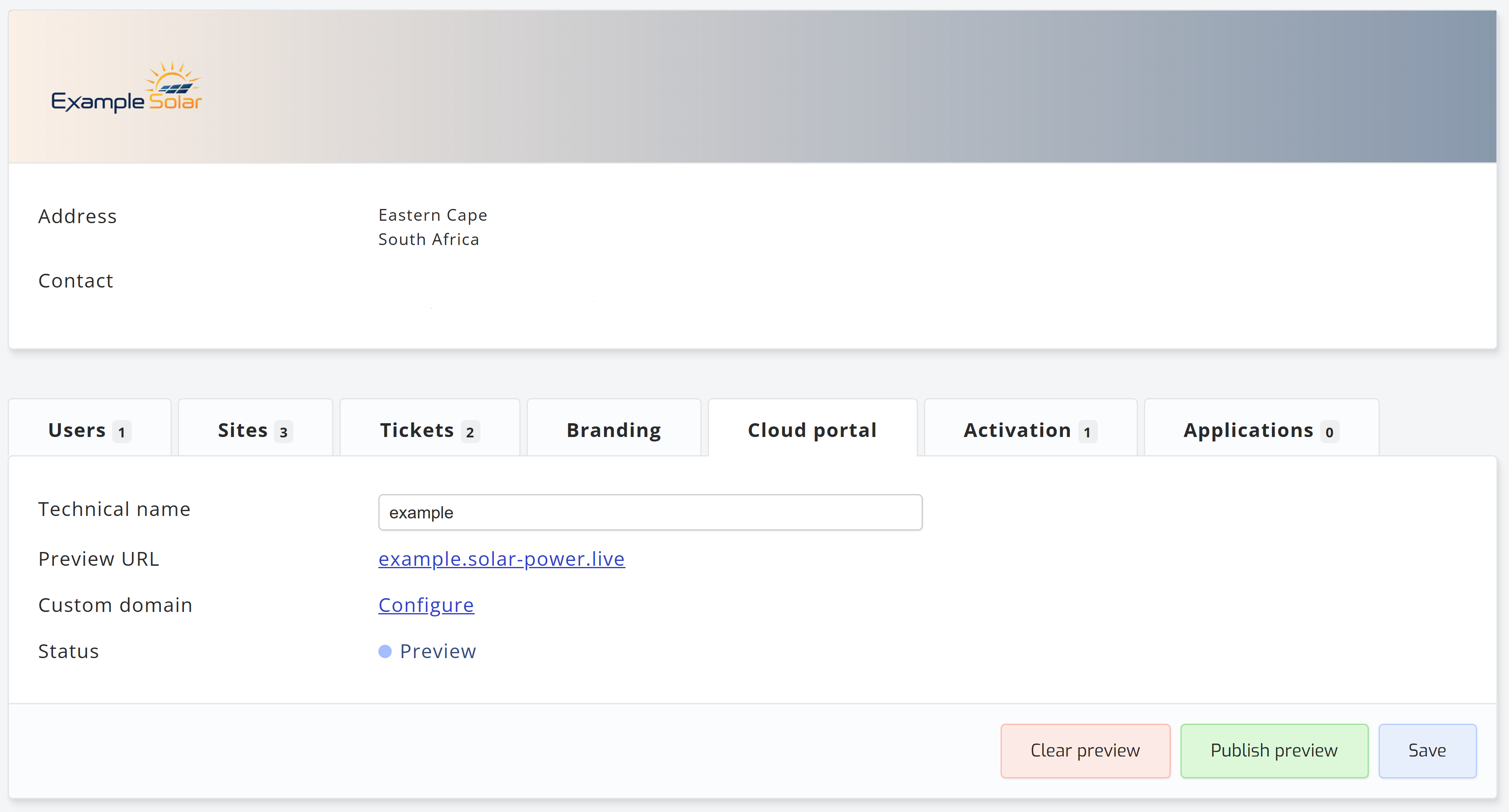
Open the users page and select your organization, then open
the Cloud Portal tab. Enable the preview to generate a working copy of your portal that only you can
see.
 Step 2 - Review the preview
The preview shows exactly what your customers will see, using your branding and the details entered in the previous step. Work through it and confirm that your logo, colours and contact details are correct before you publish.
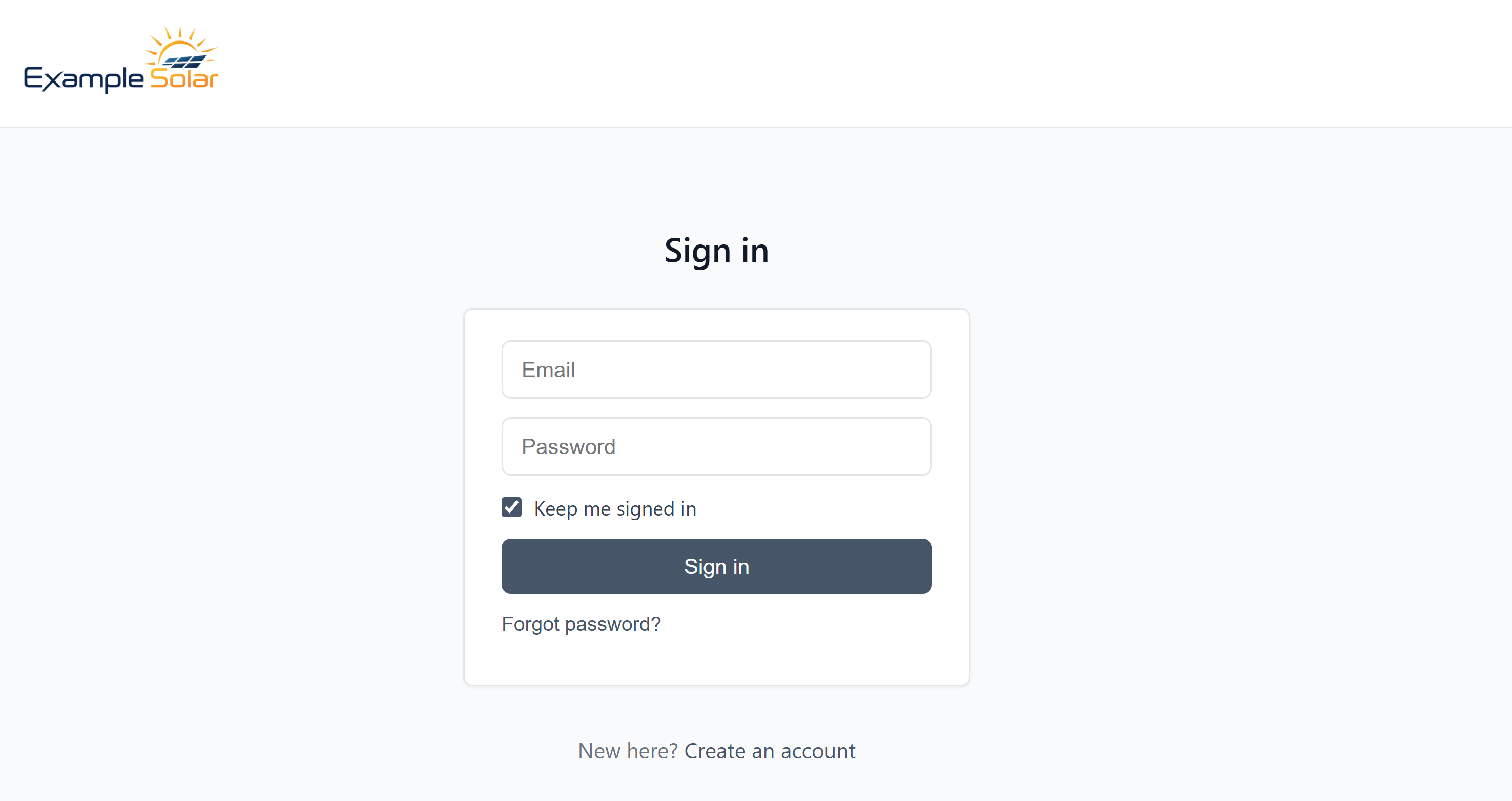
Please Note: The preview behaves differently in preview compared with the published portal. Additionally, you can set the colours etc to match your own branding via the "Branding" tab in your organisation.
Step 3 - Publish the portal
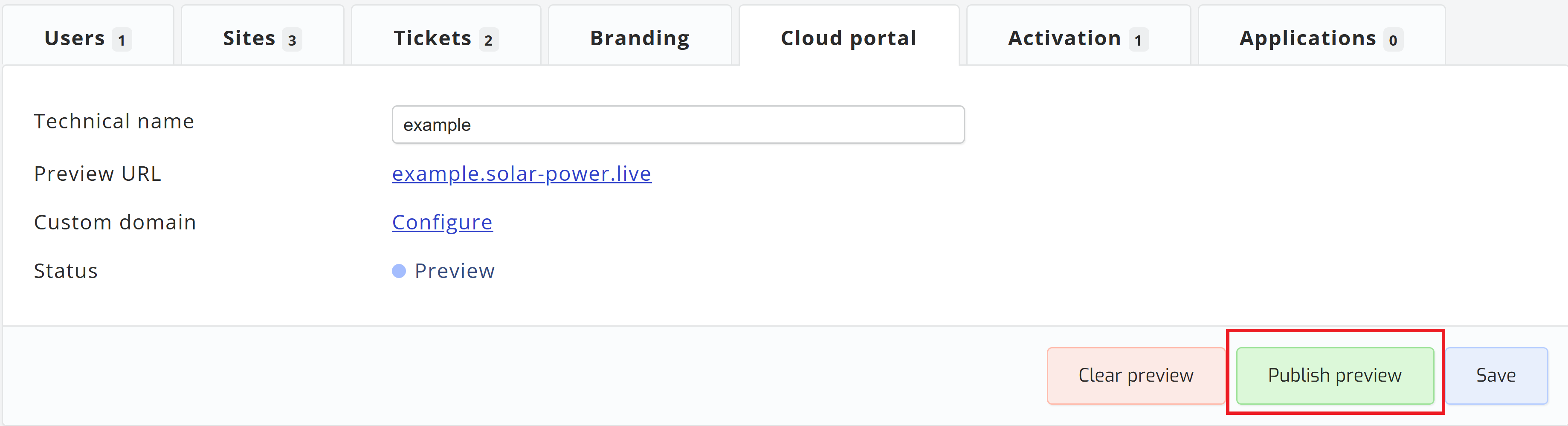
Once you are happy with the preview, publish it to make the portal live. Your portal remains available on its SolarAssistant address until you point your own domain at it in the next step.
Step 4 - Use your own domain
You can serve the portal from your own domain, such as portal.yourcompany.com. Enter the domain you would like to use on the portal configuration page, then add the DNS record shown to your domain's DNS settings.
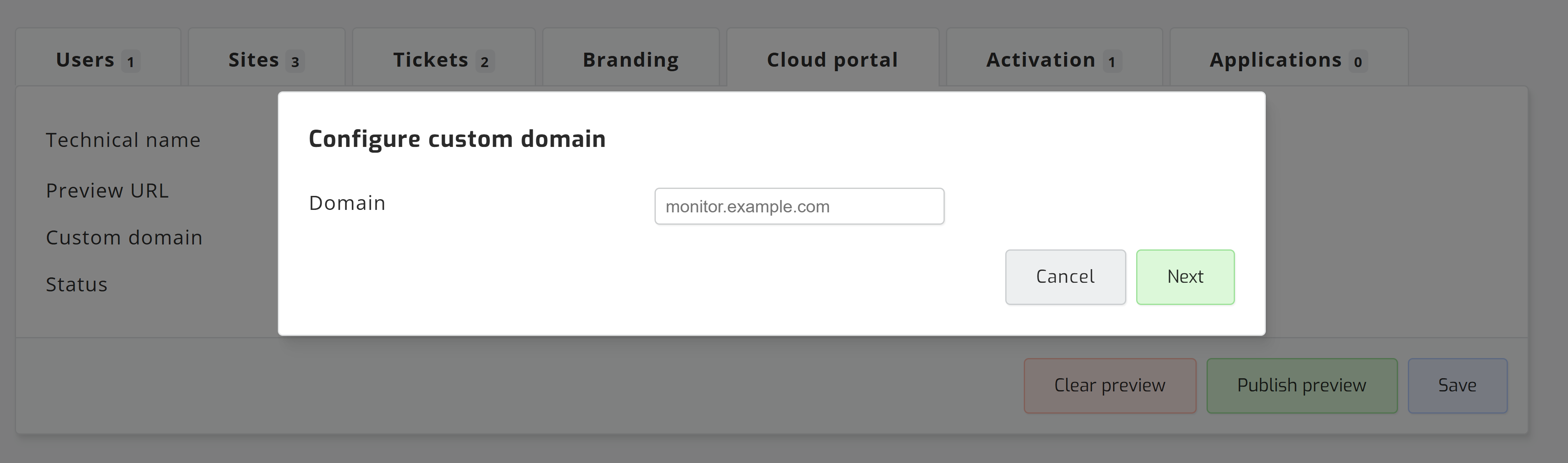
DNS changes are not always immediate and can take up to 48 hours to propagate. The portal will continue to work on its original address while you wait.
Step 5 - Customise the interface with GitHub
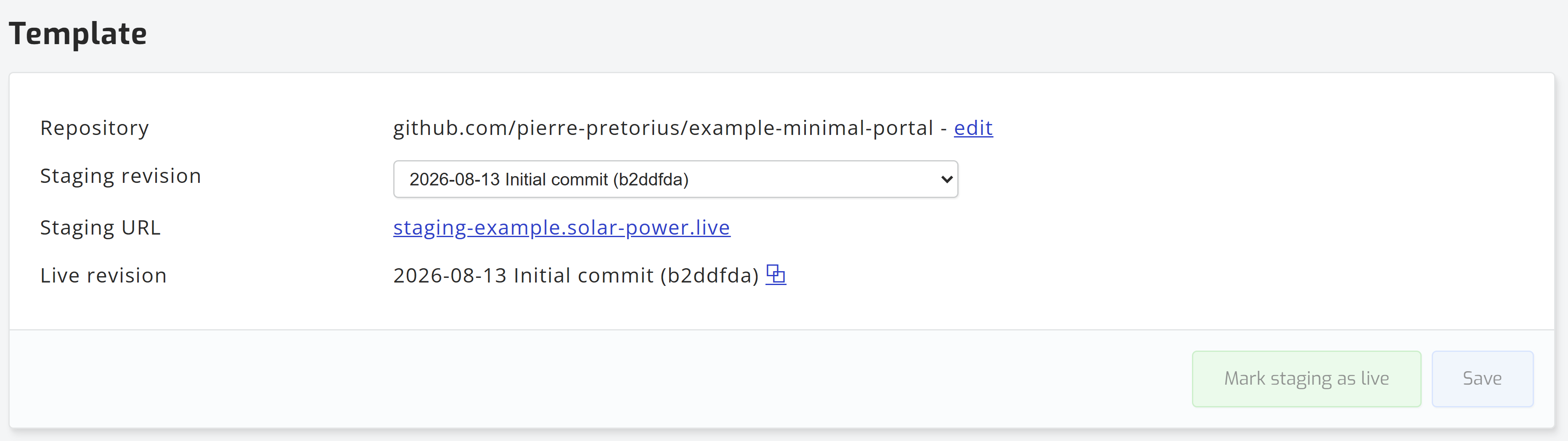
For control beyond the branding options above, the portal interface can be customised through GitHub. This lets you change the layout and styling of the portal itself rather than only its logo and colours.
Troubleshooting
If your portal does not load on your own domain, confirm the DNS record matches the one shown on the configuration page and that enough time has passed for it to propagate. If you are still having trouble, please contact our support team.