
USB type B port
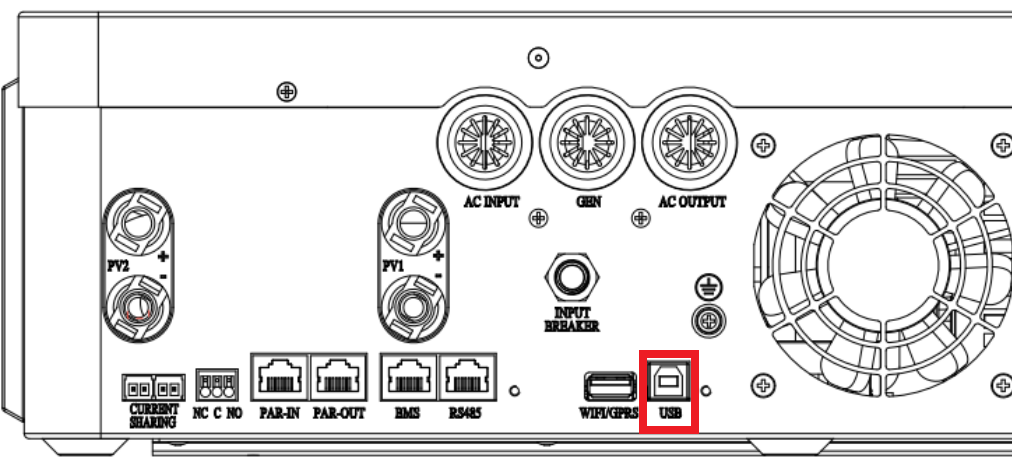
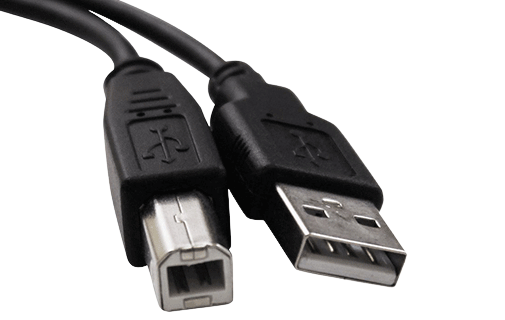
Plug a USB type B cable into the USB port, usually located at the bottom of the inverter.
For a more reliable connection, we recommend the RS485 cable instead.
Steps in SolarAssistant
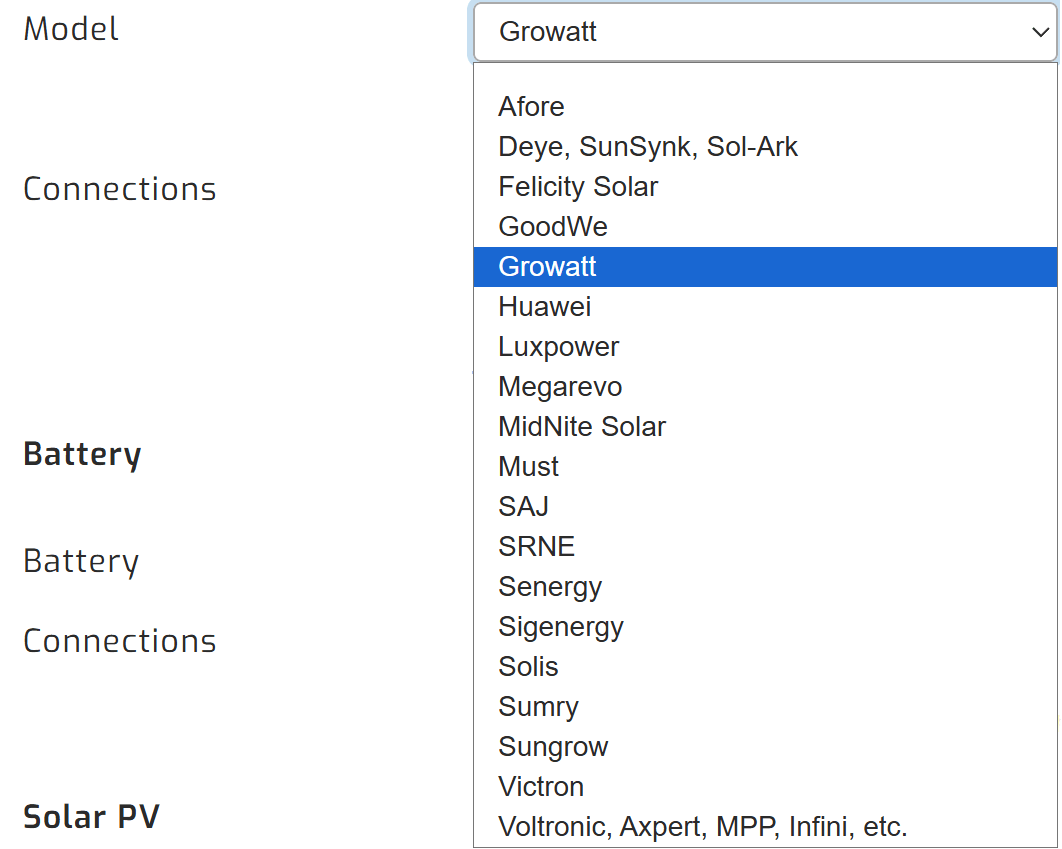
On the configuration page, select "Growatt" as your inverter model.
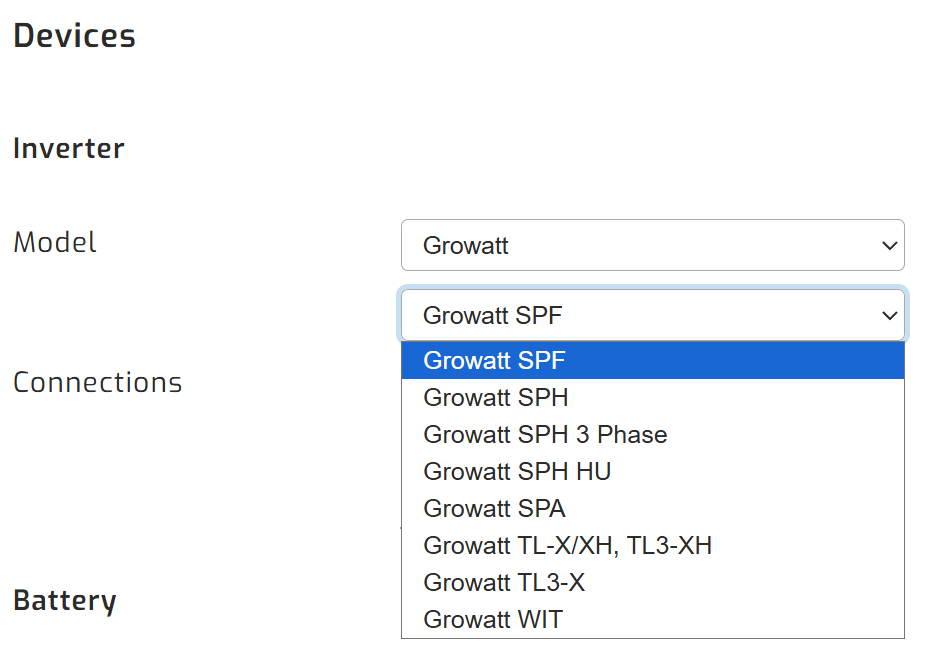
Then, make sure you select the relevant Growatt inverter model.
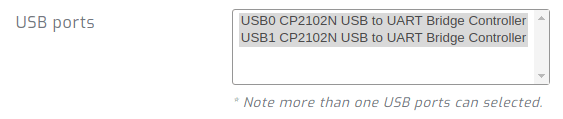
Devices connected via USB will show up. Select all ports that are Growatt inverters.
Click connect:
Parallel installations
With Growatt inverters you will need to connect each inverter with its own cable.
Troubleshooting - Unable to establish successful connection
If your inverter is showing up in SolarAssistant as a "ACM0" USB device then please let your SolarAssistant device run for a few hours while it installs the latest Growatt drivers, then click "reboot" on the configuration page to reboot SolarAssistant. The USB device should change to "XRUSB0". If it remains as "ACM0", please contact us.
If you are unable to get a connection, please try the official PV Keeper software from a laptop. SolarAssistant reads the inverter with exactly the same mechanism as this software.
Troubleshooting - Unreliable connection
The quality of the USB communication components varies between Growatt SPF production batches. Some users report that communication works but drops out every few days. If this happens, switch to the RS485 cable. If you stay on USB, use a short shielded USB cable with ferrite beads.