Grok
Overview
Connect Grok to your SolarAssistant account to ask questions in plain language. Grok reads your sites, live metrics, settings, events and shop orders through the SolarAssistant MCP server, and can even build your solar business customer portal.
You sign in with your SolarAssistant account. There is no API token to create and nothing to install. Grok only sees the sites your account can already see.
Step 1 - Open the connectors page
Connectors are managed on grok.com, not in the X app. Open the following address in your browser and click New Connector:
https://grok.com/connectors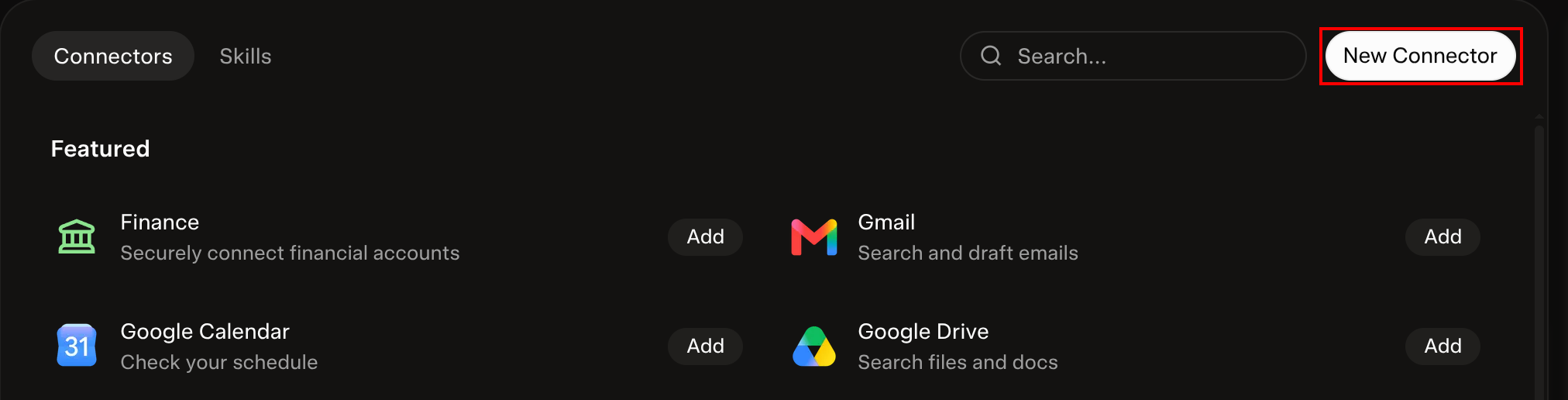
Step 2 - Add the SolarAssistant connector
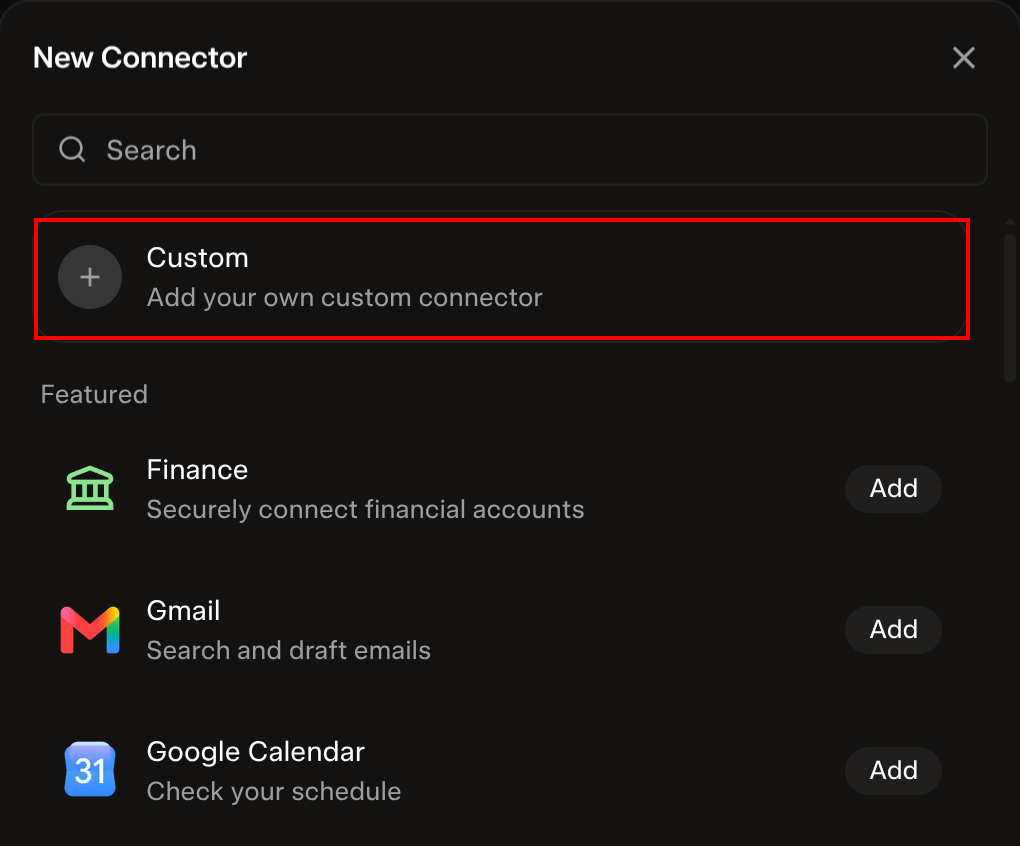
Select Custom at the top of the list.
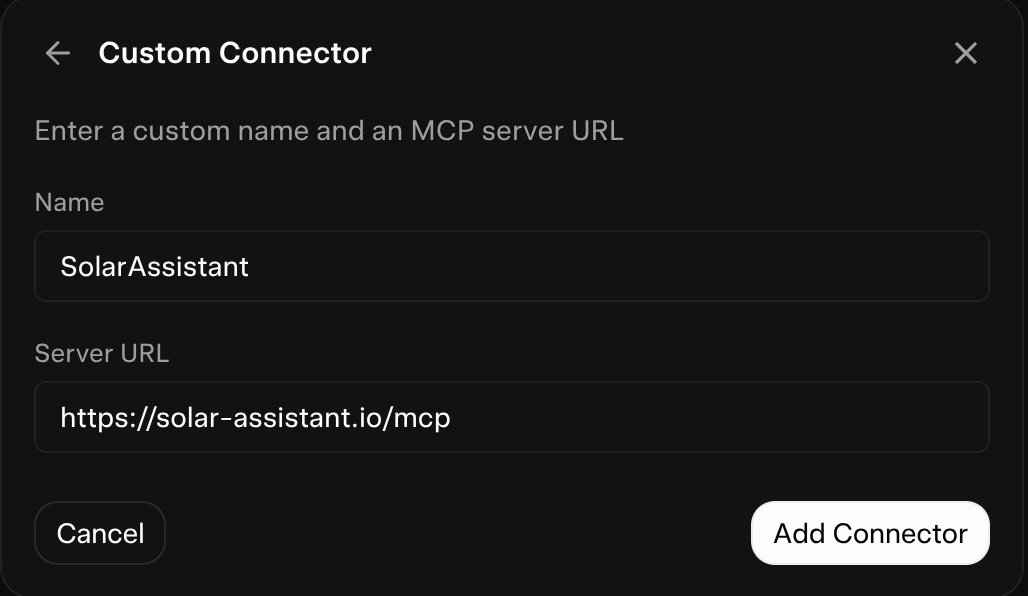
Enter SolarAssistant as the name and the following as the server URL:
https://solar-assistant.io/mcpThen click Add Connector.
Step 3 - Allow access
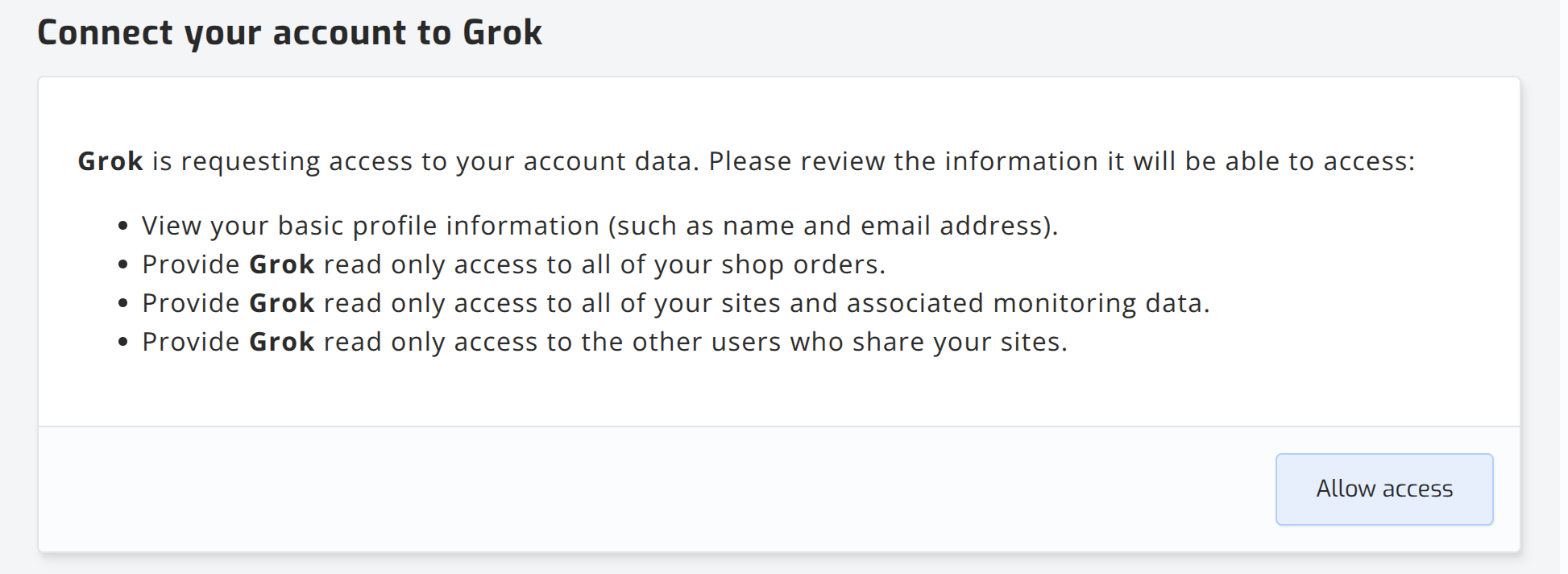
Sign in to SolarAssistant if you are not signed in already. Review what Grok is asking for and click Allow access. All of the access is read only.
You are returned to Grok and the connector is ready to use.
Step 4 - Ask Grok about your system
Start a chat, click the + next to the message box and select Connectors to check that SolarAssistant is switched on.
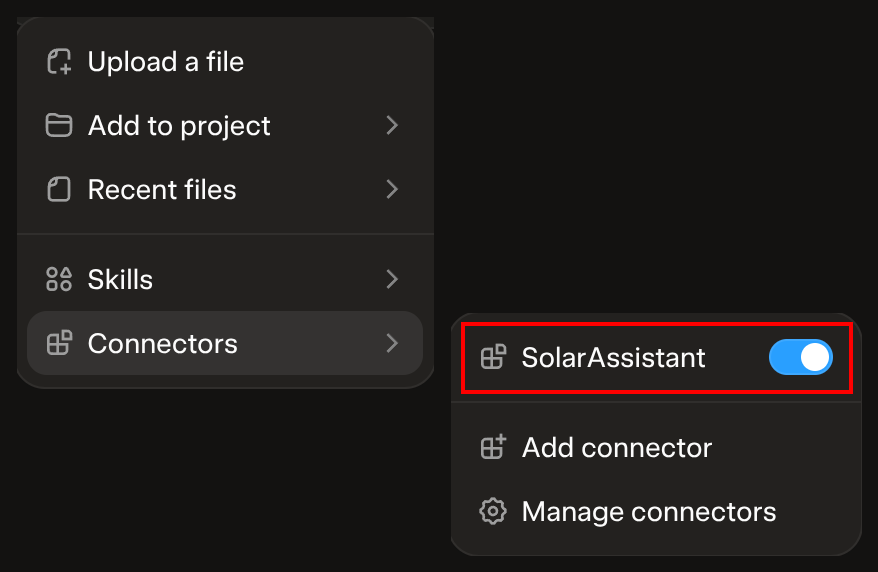
Then ask a question. Some examples:
Find out what went wrong
"My inverter just switched to grid, check my settings and figure out why that happened."
Save more on grid energy
"Look at how my system has been running and tell me if there are inverter settings you would change to use less grid energy."
Build your own customer portal
"Help me customize a custom solar monitoring portal for my business."
Troubleshooting
If you run into any issues, please contact our support team.