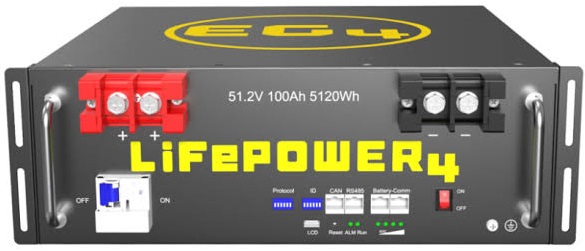
RS485 port
The EG4 LL-S is read over its RS485 port. Use a custom crimp RS485 cable between the battery's RS485 port and your SolarAssistant device.
If you buy any random USB RS485 cable which doesn't specifically state that it supports the battery, it may not work. You can read more about the communication chips we recommend using here. We also sell self-crimp cables here The pinout for this cable is shown below:
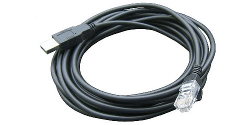
| Pin 1 | RS485B |
| Pin 2 | RS485A |
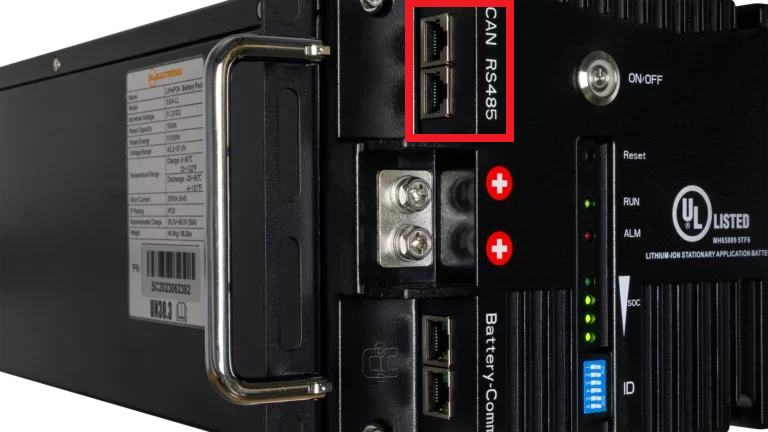
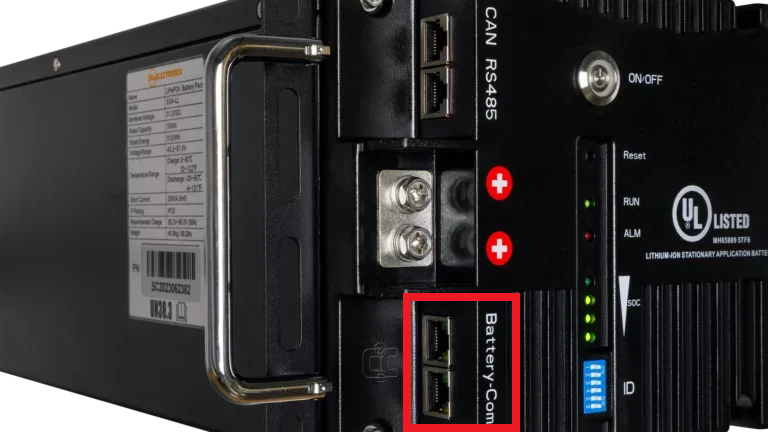
Note: If the port is available, we usually read the unit via the RS485 port. If you are reading the battery via CAN or RS485 to the inverter please see the Troubleshooting section to see how to connect via the Battery-Comm ports.
Steps in SolarAssistant
On the configuration page, select "USB Modbus RS232/RS485" as your battery.
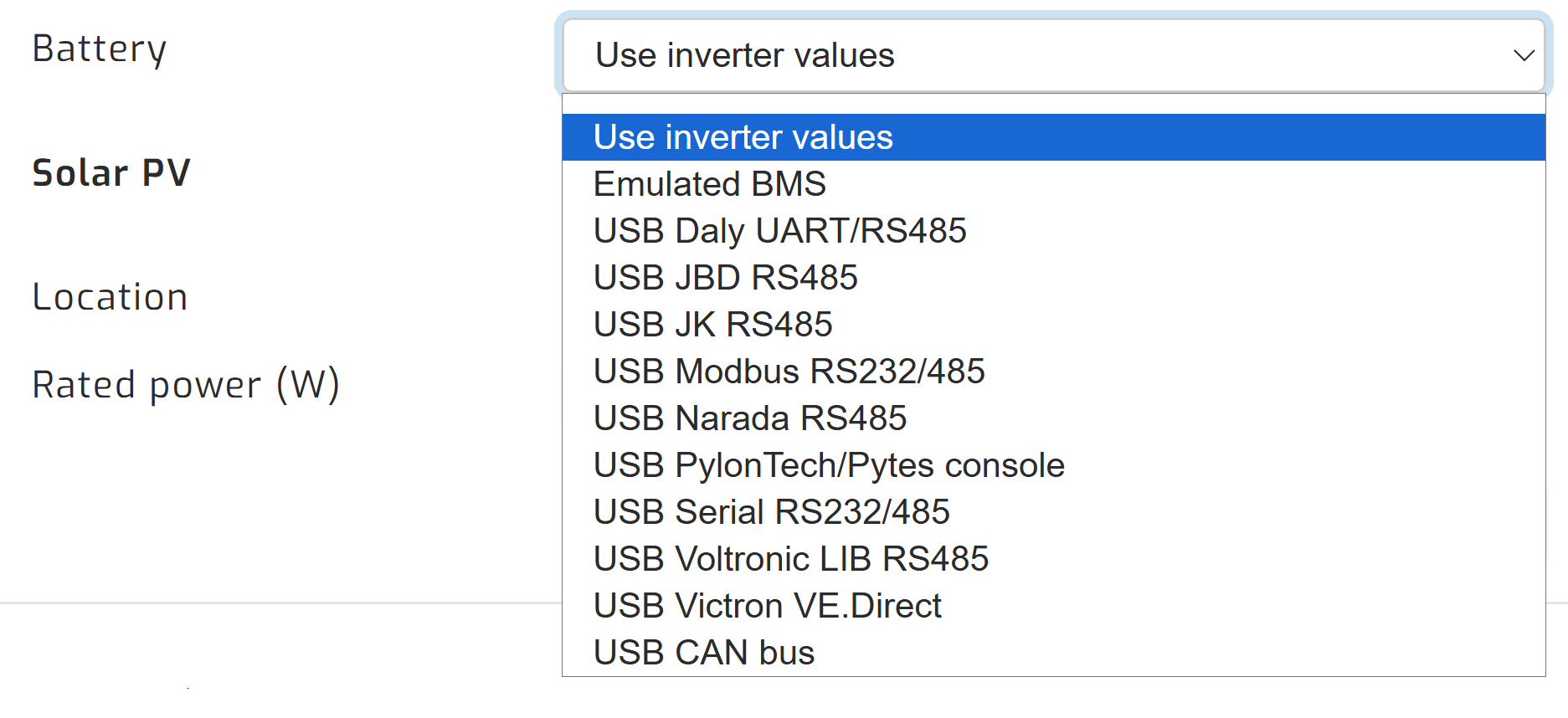
Select the USB device where you have the battery connected. There will typically be one option, because this protocol only lets you select a single USB device. Otherwise, if you are getting an error here, please try clicking the "Connections" dropdown to select an alternative cable.
Click connect:
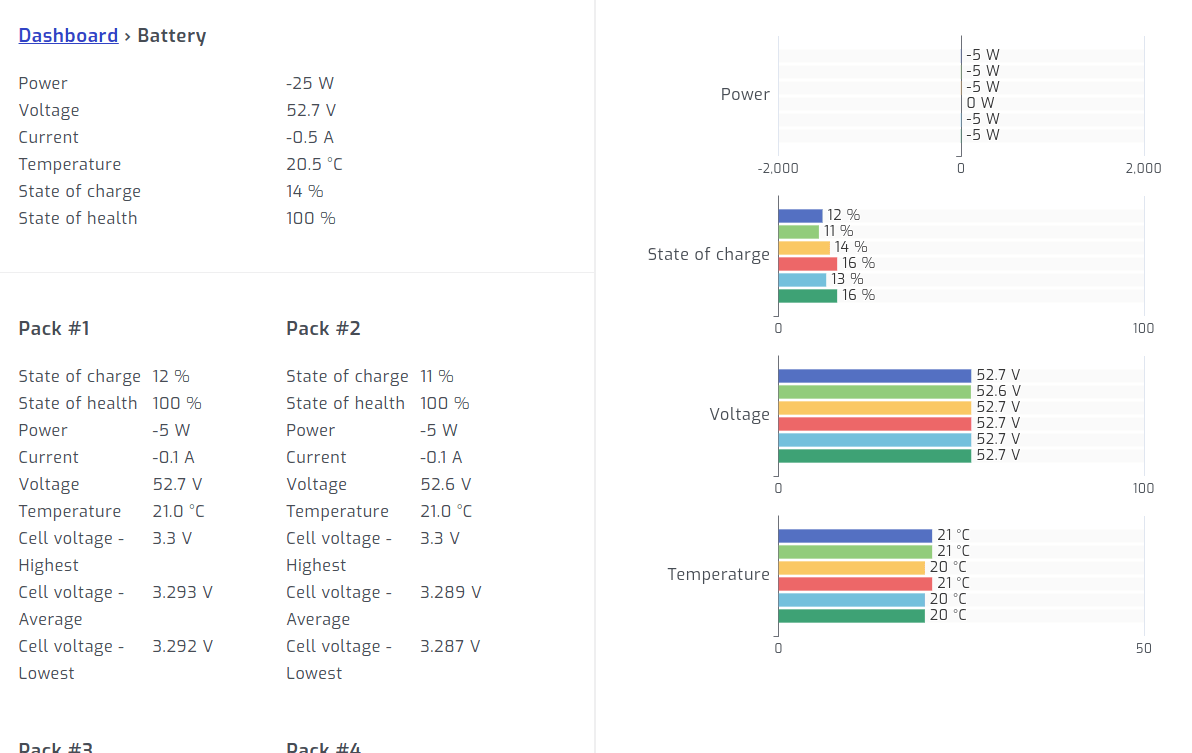
Once connected, you should see individual battery metrics as shown below:
Troubleshooting
Battery already being read via RS485/CAN
If you are reading the battery via RS485/CAN to the inverter, please use the
Battery-Comm ports to use "Passive Reading". This lets us connect to the battery pack as
if we were another battery in the bank. You should see an open parallel communication port on the master and on the last
battery in the pack. You may have to test both, since which one works depends on the variant you have. However, this would
let us read the data the batteries are sharing with one another, leaving the RS485/CAN ports
open for inverter connection.
Addressing
With the latest EG4 firmware, setting a battery to address 1 changes the protocol of the battery. SolarAssistant supports the battery's default protocol, not the address 1 protocol. Start your DIP switch addresses with the first battery set to 2, the next to 3, then 4, and so on.
You should not have any gaps in your battery addresses. If address 3 is missing, SolarAssistant will only read up to address 2.
Testing with the native software
If you are having trouble reading your batteries and you have a Windows laptop, we recommend testing your setup with the official software provided by Signature Solar. If your laptop is able to read the batteries, then SolarAssistant will also be able to read them.
Signature Solar EG4 page - scroll down to "Resources" to download the software.
Signature Solar EG4 monitoring software setup video