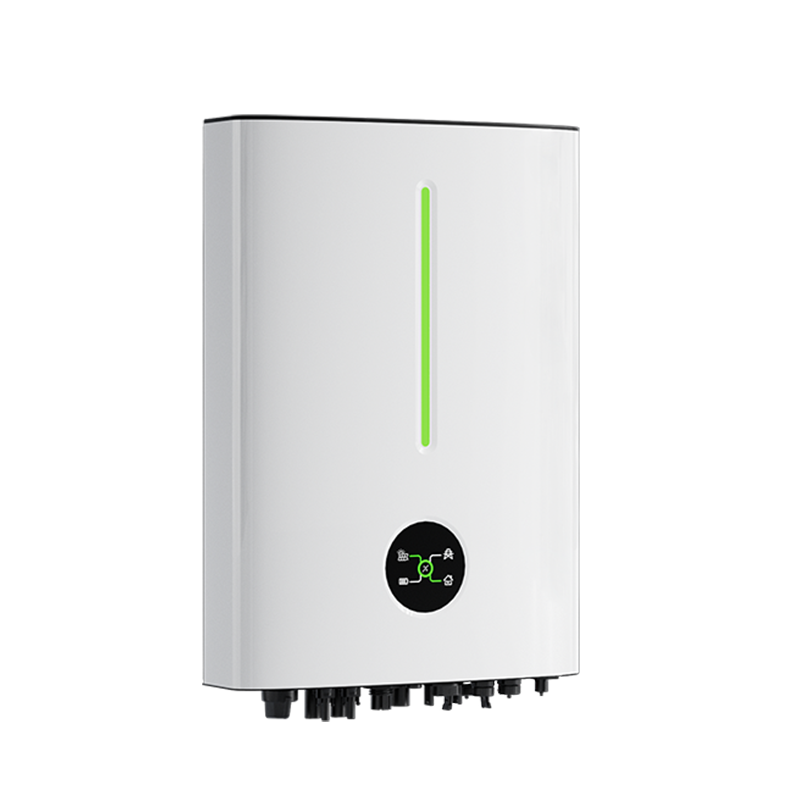
USB WiFi dongle port
A custom cable is required to connect to the USB WiFi dongle port of this inverter.
Cables
You will require our self-crimp RS485 cable. If you buy any random USB RS485 cable on Amazon, Ebay, Takealot, etc. which doesn't specifically state that it supports the inverter, it may not work. You can read more about the communication chips we recommend using here.
You will also require a standard USB Type A cable. You could cut a USB cable and use the wires inside for this purpose, or you could purchase a USB Type A pigtail cable. In either case, it's important that the center two USB pins have wires connected - some USB cables are for power only, and only have the outer two pins connected. Another option to consider is a USB Type A to terminal block adapter.
Wiring
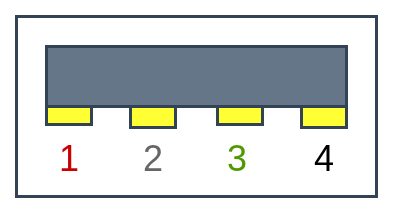
The female USB port on the inverter has the following pin-out:
| Pin | Inverter use | USB standard |
| 1 | Vcc (+5V) | Vcc (+5V) |
| 2 | RS485 B | Data - |
| 3 | RS485 A | Data + |
| 4 | Ground | Ground |
Wire our self-crimp RS485 cable to a USB Type A cable according to the diagram below. Only RS485 A and RS485 B need to be connected.
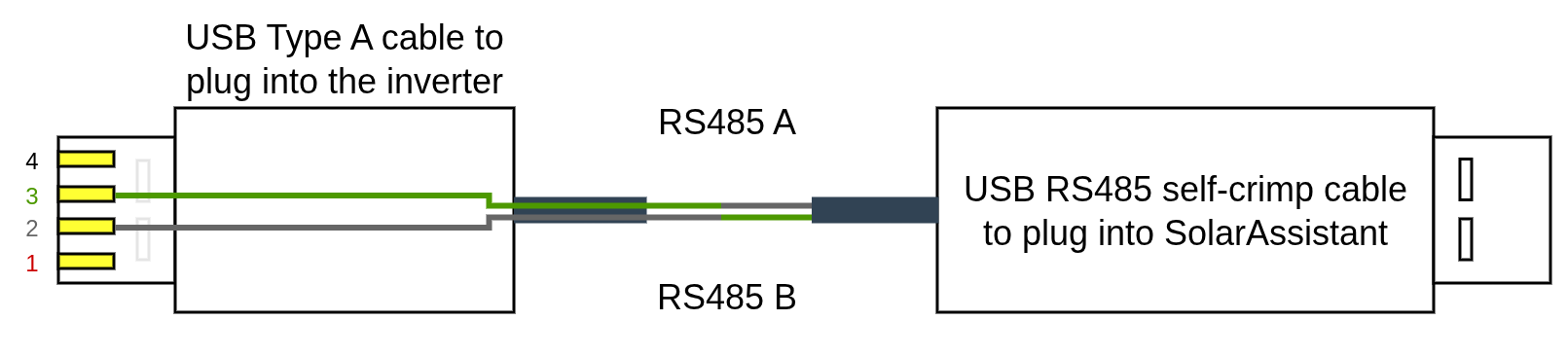
- The green wire of the USB Type A cable should be connected to the white wire (RS485 A) of the self-crimp RS485 cable.
- The white wire of the USB Type A cable should be connected to the green wire (RS485 B) of the self-crimp RS485 cable.
Once wired, plug the USB Type A cable into the inverter and the other end into your SolarAssistant device.
Steps in SolarAssistant
On the configuration page, select "Livoltek" as your inverter model.
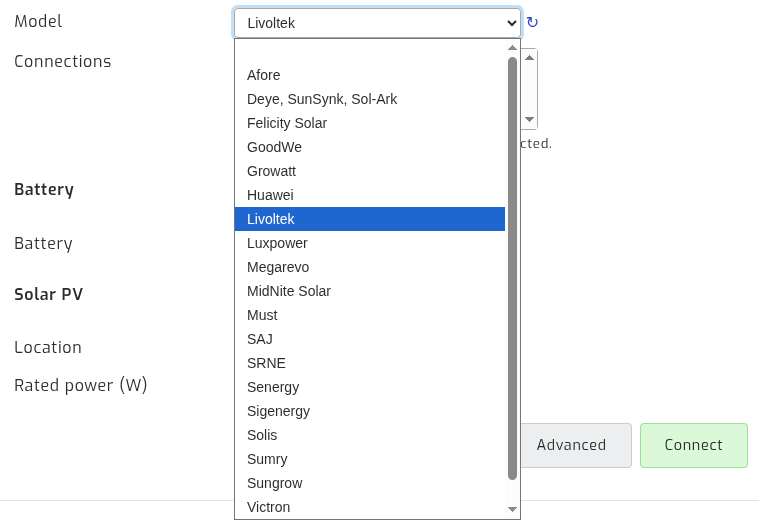
Select the USB port(s) where you have inverters connected. There will typically be one option.

Click connect:
Notes - Using the WiFi dongle and SolarAssistant Simultaneously
To use SolarAssistant and the WiFi dongle simultaneously, you must wire the WiFi dongle and the RS485 cable in parallel to the same pins on the inverter's USB port. While this is not an ideal configuration and could potentially cause communication issues, our testing indicates it is relatively stable.
One way to achieve this is to purchase a male-to-female USB 2 extension cable. You can expose the internal wires of the extension cable and connect the RS485 self-crimp cable in parallel, following the standard wiring schematic. Once wired, plug the WiFi dongle into the female end of the extension cable and the male end into the inverter, and the RS485 USB cable into SolarAssistant. This allows both devices to maintain a concurrent connection to the inverter.
We have investigated the possibility of connecting SolarAssistant via the multi-COM terminal connection on the inverter, but we have not been able to get this working. If you have any success with this, please let our support team know.